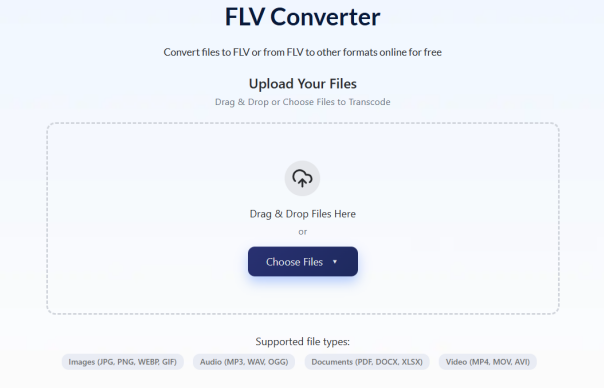
If you’ve stumbled across a .flv file on an old hard drive or downloaded a video that won’t play on anything, you’re meeting one of the internet’s most historically significant — and now most stranded — video formats. FLV powered the early web’s video revolution, then nearly vanished overnight when Adobe pulled the plug on Flash. In many cases, opening the file is only half the challenge, which is why an FLV Converter is often the simplest way to make older videos compatible with modern devices and software.
Here’s everything you need to know about what FLV is, why it exists, and how to make those old files usable again.
What Is an FLV File?
An FLV file is a Flash Video file — a multimedia container format developed by Macromedia (later acquired by Adobe) specifically for delivering video over the internet through Adobe Flash Player.
Introduced in the early 2000s, FLV became the backbone of online video before modern streaming formats existed. When you watched a video on early YouTube (pre-2010), Hulu, or VEVO, you were watching an FLV file playing inside an embedded Flash Player in your browser.
An FLV file contains:
- Video stream: encoded with Sorenson Spark, VP6, or H.264/AVC
- Audio stream: encoded with MP3 or AAC
- Metadata: duration, keyframe positions, resolution, framerate
- Script data tags: embedded playback instructions
The codec inside determines compatibility. FLV files using H.264 video play on more modern tools than those using the older Sorenson Spark or VP6 codecs — which is why two FLV files with identical extensions can behave completely differently.
The Rise and Fall of FLV: A Brief History
FLV’s story is essentially the story of online video itself.
2002: Macromedia introduces Flash Video format alongside Flash Player 6. For the first time, websites can embed video that plays consistently across browsers without platform-specific plugins.
2005–2009: FLV becomes dominant. YouTube launches in 2005 and uses FLV exclusively. Hulu, VEVO, Dailymotion, and virtually every video platform follow. At its peak, FLV is the format of the internet.
2010: Apple refuses Flash support on the iPhone. HTML5 video begins replacing Flash-based players. MP4 starts replacing FLV as the web standard.
2017: Adobe announces Flash will reach end-of-life by December 31, 2020.
December 31, 2020: Adobe officially kills Flash Player. All major browsers block Flash content. FLV becomes a legacy format overnight — millions of archived files now stranded on hard drives worldwide.
The SEO consequence nobody mentions: Because Flash Player was required to play FLV files, Google’s crawlers could never index the video content inside them. Every FLV file that ever existed was invisible to search engines. This is one reason YouTube eventually moved to MP4 — not just for compatibility, but for discoverability.
FLV vs F4V: What’s the Difference?
Before FLV died, Adobe created F4V as its successor — a cleaner, more modern container based on the MP4/MPEG-4 structure rather than the older FLV architecture.
| Feature | FLV | F4V |
| Container base | Proprietary Flash | MPEG-4 (ISO standard) |
| Codec support | Sorenson Spark, VP6, H.264 | H.264, AAC only |
| Metadata handling | Script data tags | Standard MPEG-4 atoms |
| Modern compatibility | Poor | Moderate |
| Still in use | Legacy archives only | Rare |
F4V files use the .f4v extension. If you encounter one, treat it like an MP4 — most modern tools handle it better than traditional FLV.
Why FLV Files Won’t Play on Modern Devices
Three reasons FLV files fail today:
1. No Flash Player: Flash Player was the runtime FLV was designed for. Without it, most browsers and default media players have no mechanism to decode the container.
2. Codec mismatch: Older FLV files using Sorenson Spark or VP6 video aren’t supported by modern decoders. H.264-encoded FLV files fare better but still require specific players.
3. No mobile support: iOS and Android never supported Flash. Every FLV file is permanently incompatible with native mobile playback.
Quick fix: Download VLC Media Player (free, Windows/Mac/Linux). VLC includes built-in FLV support and handles Sorenson Spark, VP6, and H.264 variants without additional codecs.
How to Convert FLV to MP4 (Step-by-Step)
Converting FLV to MP4 is the permanent solution — MP4 plays natively on every device, browser, and platform that exists today.
Using AhaConvert:
- Visit AhaConvert’s free online FLV Converter
- Upload your FLV file directly from your device
- Select MP4 as the output format
- Choose H.264 video + AAC audio for maximum compatibility
- Click Convert — no account, no software installation required
- Download your converted file instantly
AhaConvert processes files with 256-bit SSL encryption and deletes them automatically within 24 hours. It handles all three FLV codec variants (Sorenson Spark, VP6, H.264) and is completely free.
Best conversion settings by destination:
| Destination | Video Codec | Bitrate | Audio |
| General playback | H.264 | 5,000 kbps | AAC 192kbps |
| YouTube upload | H.264 | 10,000 kbps | AAC 192kbps |
| Long-term archiving | H.265 | 6,000 kbps | AAC 192kbps |
Quality tip: Match the source resolution exactly. Upscaling a 480p FLV to 1080p MP4 increases file size without adding quality.
Frequently Asked Questions
What is an FLV file?
An FLV (Flash Video) file is a video container format developed by Macromedia and Adobe for internet video delivery via Flash Player. It was the dominant online video format from roughly 2005 to 2015, powering early YouTube, Hulu, and VEVO before HTML5 and MP4 replaced it. Today FLV is a legacy format — playable with tools like VLC, but best converted to MP4 for long-term use.
Why can’t I open my FLV file?
Most modern devices and browsers stopped supporting Adobe Flash Player after its December 2020 end-of-life. Without Flash Player, the default tools on Windows, Mac, iPhone, and Android can’t decode FLV files. Install VLC Media Player for immediate playback, or convert to MP4 using AhaConvert for permanent compatibility on any device.
Can I convert FLV to MP4 without losing quality?
Yes — at 5,000–10,000 kbps H.264 output, conversion quality loss is invisible for standard viewing. The key is matching the source resolution and frame rate rather than upscaling. Most FLV files are 480p–720p; converting at native resolution preserves all original quality. AhaConvert maintains source quality automatically at default settings.
What is the difference between FLV and F4V?
F4V is Adobe’s successor to FLV — a cleaner container based on the MPEG-4 standard rather than Flash’s proprietary architecture. F4V files use H.264 video exclusively and handle metadata more cleanly. Both are now legacy formats, but F4V has slightly better compatibility with modern tools.
Is FLV still used today?
New content is virtually never created in FLV format. However, millions of archived FLV files exist from the 2005–2015 era — old YouTube downloads, corporate training archives, and personal video collections. If you have FLV files you care about, converting them to MP4 now protects them from future playback issues as codec support continues to shrink.
The Bottom Line
FLV was the format that made online video possible — and then became a casualty of the technology it helped create. If you have FLV files sitting on a hard drive, they’re not lost. VLC plays them today, and AhaConvert converts them to universally compatible MP4 in under two minutes, free, with no software required.
Convert them once. Never worry about playback again.

